1 Preset name and arrows
The arrows step through the factory bank. Click the name to open the preset browser. A small dot before the name means the sound has changed since it was loaded.
Version 1.3.5 / November 2026 / macOS interface with Windows notes
A playable resonator whose ringing is recorded, scattered into grains and fed back until it blooms.
Strike a modelled string, bell or plate. Everything it rings is written to a short tape, three playheads read that tape back as a cloud of grains, and the cloud can strike the resonator again. One note can grow into a slowly moving texture.
Download the PDF01 / MANUAL
Particle Chimes does not start with an oscillator. A note strikes or bows a modelled object: a set of tuned modes, a string with sympathetic strings, a struck plate. That object rings for as long as its material allows, and the ringing is the raw sound of the instrument.
Everything the resonator plays is recorded, continuously, onto a short loop of tape. Three playheads read that tape back. In the default Grains engine each head fires a stream of small grains; together they make a cloud that can be dense or sparse, smooth or sharp, at the original pitch or transposed. The PARTICLES MIX knob blends the dry resonator with the cloud.
The cloud can also be fed back into the resonator. BLOOM sends it into the exciter, so the grains strike the strings again. Turn it up and a single note keeps renewing itself; turn it further and the instrument swells on its own. A delay, a reverb and a soft limiter finish the sound.
Particle Chimes stands on open-source synthesizer DNA. Both halves of the engine, the ringing and the cloud, descend from Eurorack modules designed by Émilie Gillet of Mutable Instruments: the resonator is a port of Rings, its exciters come from Elements, the Particles engine descends from Clouds, and the reverb is Beads. She published that code under the MIT licence, and that is why an instrument like this can exist. The Credits chapter says more.
On the Mac, Particle Chimes runs as an Audio Unit, VST3 and AAX instrument and as a standalone app. On Windows it runs as a VST3 instrument and a standalone app. A second plug-in, Particle Chimes FX, puts the same engine on an audio track so you can play the resonator and the cloud over incoming sound; see the Particle Chimes FX chapter. The iPhone and iPad version shares the engine and its presets.
This manual describes version 1.3.5. The screenshots come from the macOS standalone app with the INIT sound loaded. The Windows version plays and sounds the same, but some controls are named or placed differently: an On Windows note at the end of a chapter says where, and the chapter Particle Chimes on Windows collects the rest.
To hear the idea in thirty seconds: load Slow Bloom with the arrow buttons at the top left, then click and drag along the ribbon at the bottom of the window. Listen to the notes ring, smear into grains and keep returning after you stop.
For a first pass of your own: start from INIT. Play a few notes on the ribbon. Turn the PARTICLES MIX knob to about halfway to hear the cloud. Raise BLOOM LEVEL slowly from zero and stop when the sound starts to sustain by itself. Click FREEZE on the buffer and play on top of the frozen cloud.
02 / MANUAL
The editor is one window with no tabs. The sound source is on the left, the visualizer in the middle and the texture and effects on the right. The tape and its playheads sit below, and the performance ribbon runs along the bottom.
The arrows step through the factory bank. Click the name to open the preset browser. A small dot before the name means the sound has changed since it was loaded.
Opens the modulation editor. A dot beside the icon shows that at least one slot is on and has a target. See the Modulation chapter.
The gear opens Settings: delay time behaviour, MIDI learn (standalone app) and About & License.
The modelled object, how it is struck, and how many voices play. See Resonator and exciter.
How much of the cloud strikes the resonator again, and the voice you play by clicking the visualizer.
Draws the sound. Click or drag on it to strum. The chips at the top choose a skin and maximize the view.
The granular engine that turns the tape into a cloud. See Particles and effects.
The two effects, one shown at a time.
The tape: its length, its character, and FREEZE.
The three heads that read the tape, each with its own position, speed, pitch and pan.
Play notes with the mouse, set the key, and start the AUTO pattern generator.
03 / MANUAL
The resonator is the voice. The model sets what kind of object it is; the four large knobs shape it; the exciter decides what strikes it. Every knob reads its value underneath.
The kind of object. Modal is a set of tuned modes, like a bar or bell. Sympathetic adds strings that ring in sympathy. String is a plucked or bowed string. FM is a metallic, bell-like model. Symp Quantized tunes the sympathetic strings to a chord. String + Reverb adds a built-in diffuse tail. The six Synth models (Formant, Chorus, Reverb, Formant 2, Ensemble, Reverb 2) are string-synth voices; they always use the Classic exciter.
Opens the CHIMES sheet with fine envelope, filter, motor and tamer settings. See The CHIMES sheet.
HARMONICS sets how the overtones are spaced, from pure to clangorous. On Symp Quantized it becomes CHORD and steps through Oct, 5th, sus4, min, m7, m9, m11, 69, M9, M7 and Maj. BRIGHTNESS opens or darkens the tone. SUSTAIN sets how long the object rings. POSITION moves the strike point along the object, which changes which overtones sound.
What strikes the resonator: Classic, Mallet, Plectrum, Particles, Flow, Noise, Morph, S&H, Ext/Voice, or Ext (open). The Ext choices use the plug-in's audio input as the exciter. Once you build a two-slot chain, a badge summarising it replaces this menu.
Opens the exciter chain editor over the visualizer, where you can blend two exciters and shape their envelope and filter. It reads EDITING while open.
Two knobs whose names follow the exciter: FRICTION and HARDNESS for Classic and the Ext exciters, WAVE and WIDTH for Morph, RATE and SMOOTH for S&H, COLOR and SHAPE for the others. With Classic they are dimmed, because Classic does not use them.
The output level of the resonator (80 % at INIT).
How wide the resonator voices spread across the stereo field. At zero they sit in the centre.
1, 2 or 4 resonator voices. More voices let notes overlap; one voice makes each new note cut the last. The dots light as voices play.
A vibraphone-style tremolo on the resonator. Fully counterclockwise is OFF; otherwise it runs from 0.5 to 9 Hz. Set its depth on the CHIMES sheet.
How much of the cloud is fed back into the exciter. This works even when PARTICLES MIX is at zero, so you can hear only the resonator being re-struck by its own grains. High settings sustain and swell on their own.
LEVEL sets the volume of the voice you strum on the visualizer. TRACKING sets its pitch: OFF, TRACK, NOTE (the scale degree under the pointer) or OPEN (free).
04 / MANUAL
Click EDIT in the EXCITER row. The editor covers the visualizer, which pauses until you close it with DONE or Escape. The chain reads left to right: slot A blends with slot B, the blend passes through an envelope and a filter, and the result strikes the resonator.
Sets slot B to Off, the blend to zero, the envelope to the preset's values and the filter to FOLLOW. Slot A is kept.
Closes the editor. Escape does the same.
The main exciter, the same choice as the front panel menu, with its own shaping pair.
A second exciter to blend with A: Off, Mallet, Plectrum, Particles, Flow, Noise, Morph, S&H or Ext/Voice. It is available only when slot A is a per-voice exciter, so it stays off while A is Classic or Ext.
Each slot keeps its own pair of shaping knobs.
Crossfades from slot A to slot B. Double-click to return to A. It has no effect until B is armed.
Draws the envelope and lets you drag its handles. The tag reads ON when the envelope is shaping the exciter and IDLE when the current exciter ignores it (one-shot exciters such as Classic).
DELAY (0, then 1 ms to 2 s), ATTACK (1 ms to 4 s), DECAY (1 ms to 8 s), SUS (0 to 100 %), RELEASE (1 ms to 8 s), and SPREAD (0, then 1 ms to 0.5 s), which staggers the voices like a strum.
While FOLLOW is lit, the filter tracks the BRIGHTNESS knob. Turn CUTOFF or RESONANCE to take manual control; double-click either to return to FOLLOW.
The excitation filter. CUTOFF runs from 20 Hz to 21 kHz. TYPE morphs from low-pass through band-pass to high-pass. The filter has no effect on the FM and Synth models.
05 / MANUAL
The sliders button in the RESONATOR header opens this sheet. It holds settings you rarely need while playing. Close it with Done.
Closes the sheet.
Staggers the onsets of the voices, the same control as in the exciter chain editor.
DELAY, ATTACK, DECAY, SUS and RELEASE of the exciter envelope, as faders with exact readouts. They do nothing with one-shot exciters, and say so in their tooltip.
MODE picks LP, BP or HP for the excitation filter. KEY TRACK sets how far the filter follows the note you play (100 % by default).
How deep the MOTOR tremolo goes (60 % by default).
A diagnostic switch for comparing the dry resonator. Leave it off for normal playing.
MB and SPEC switch on a multiband and a spectral resonance tamer. Use them when a model rings harshly at one frequency.
Synth and Symp Quantized models add a VOICING group here, with a Scale menu and a CLASSIC, BUTLER or SHRUTI voicing for the chord.
06 / MANUAL
PARTICLES reads the tape and turns it into texture. Its controls change with the engine: knobs that the current engine does not use are removed rather than dimmed. The table in Three particle engines lists them.
FREE leaves the time controls continuous. SYNC snaps them to tempo divisions and turns on tempo sync for the buffer and all three heads.
Grains, Loop or Stretch. Switching keeps the tape and FREEZE, so you can hear the same material three ways.
SIZE is the grain size (LENGTH in Loop, WINDOW in Stretch). DENSITY sets how many grains fire, from sparse to dense. TEXTURE shapes each grain from sharp to smooth. TONE tilts the cloud dark or bright; the centre reads flat.
MIX blends the dry resonator (CHIMES) with the cloud (PARTICLES). FEEDBACK writes the cloud back onto the tape for longer, denser tails; it is dimmed while frozen.
POSITION shifts where in the tape the cloud reads (TIME in Loop, ANCHOR in Stretch). SPREAD scatters the grains across the stereo field. JITTER randomises grain timing by up to 500 ms.
Click to switch between REGULAR and SCATTER grain timing.
Shows one effect at a time. Both run all the time; the tab only chooses which controls you see.
Freezes the reverb tail indefinitely; it reads HOLDING while on. HOLD is not saved with presets.
The reverb amount, room size, and how quickly high frequencies fade in the tail.
Shows the delay controls.
SYNC sets TIME in tempo divisions (1/64 to 4/1). PING-PONG bounces repeats between left and right.
MIX is the delay level. FEEDBACK can pass unity, so high settings build up; the limiter catches them. TIME runs from 5 ms to 2.73 s when not synced. TONE darkens or brightens the repeats. The delay sits before the reverb, so repeats are reverberated.
When you move TIME, the delay either crossfades to the new time or glides to it like tape, sweeping the pitch. Choose which under DELAY TIME CHANGE in Settings.
07 / MANUAL
The lower half of the window holds the tape, the three heads that read it, and the ribbon you play.
Measures the tape length in beats instead of seconds.
The tape's character: CLEAN (16-bit stereo), WARM (8-bit stereo), MONO (16-bit mono) or LOFI (8-bit mono). Switching clears the tape and releases FREEZE.
The dashed line is the record head (REC). The numbered markers are the three playheads. Click or drag anywhere to move the nearest head.
Stops recording so the tape holds what it has. The record head reads FROZEN. Play on top: the resonator still sounds, but new notes no longer reach the cloud.
How much recent sound the tape holds: 0.1 to 16 seconds (6 s by default), or 1/8 bar to 4 bars with SYNC.
The arrows shift the ribbon by an octave (C1 to C6). Click KEY to open AUTO PLAY, where you set the key and scale.
The round button starts and stops the AUTO pattern generator. AUTO with the arrow opens its settings.
How the ribbon plays. NOTE has one plate per scale degree. FREE glides without re-striking. TEXTURE fires grains as you scrape across its ridges. The choice is remembered.
Click to strike, drag to play. A click plays at velocity 80; when dragging, velocity follows your speed.
Click a head's dot or title to switch it on or off. All three are on at INIT.
The note button locks that head to tempo; its SPEED knob becomes DIVISION, from STILL at the centre out to 16 bars and 1/16 in either direction.
POSITION places the head in the tape. SPEED moves it: from -200 % to +200 %, negative runs backwards, and zero holds it in place. PITCH transposes what it reads by up to 24 semitones either way. PAN places it from L100 to R100.
In the standalone app, the tempo for SYNC, the delay and AUTO (20 to 300). In a plug-in it shows the host tempo and cannot be edited.
08 / MANUAL
A note, from the ribbon, from MIDI, or from AUTO, starts the exciter. The exciter strikes the resonator. The resonator's output does two things at once: it goes to the MIX knob as the dry sound, and it is recorded onto the tape.
The playheads read the tape and the Particles engine turns what they read into a cloud. The cloud goes to MIX as the wet sound. Before the mix, a copy of the cloud goes back to the exciter through BLOOM, so the next block of audio is struck by it. That is why BLOOM works even with MIX at zero.
After MIX, the sound passes through the delay, then the reverb, then a soft limiter. The limiter keeps runaway BLOOM and delay feedback from clipping, but it does not stop them building; turn BLOOM down if the sound grows too far.
When the resonator is loud, Particle Chimes gently ducks BLOOM so the loop is harder to tip over.
09 / MANUAL
All three engines read the same tape with the same three heads. They differ in what a head does with what it reads.
Grains is the default. Each head fires short grains around its position; SIZE, DENSITY and TEXTURE shape them, and PITCH transposes them without changing their speed. This is the classic granular cloud.
Loop turns the tape into a looping delay. Each head plays a loop whose TIME and LENGTH you set; LENGTH comes alive once the tape is frozen. RATE replaces PITCH and changes speed and pitch together, like a tape varispeed.
Stretch plays the tape at any speed without changing pitch, or at any pitch without changing speed. Hold SPEED near zero on a frozen tape for a long, slowly evolving hold. LOCK makes heads 2 and 3 follow head 1.
| Control | Grains | Loop | Stretch |
|---|---|---|---|
| SIZE | SIZE | LENGTH | WINDOW |
| DENSITY, TEXTURE | shown | hidden | hidden |
| POSITION (panel) | POSITION | TIME | ANCHOR |
| SPREAD, JITTER, SEED | shown | hidden | hidden |
| LENGTH, LOCK | hidden | hidden | shown |
| Head knob 1 | POSITION | TIME | hidden |
| Head knob 2 | SPEED | LENGTH | SPEED |
| Head knob 3 | PITCH | RATE | PITCH |
10 / MANUAL
There are four ways to play Particle Chimes: a MIDI keyboard or host track, the ribbon, the visualizer, and AUTO.
The ribbon plays in the current key and scale. In NOTE mode, sweep across it to strum every plate you cross. FREE is fretless. TEXTURE does not play notes in the usual sense; its ridges fire grains as you scrape.
The visualizer is a second instrument. Click it to strike the VIZ RESONATOR, a separate voice whose level and tracking are in the BLOOM card. The horizontal position sets the pitch when TRACKING is NOTE. Drag sideways to strum; the faster you drag, the harder each strike.
AUTO generates notes for you. Click KEY or the AUTO menu to open AUTO PLAY. TURING plays a looping pattern that slowly mutates: Pitch and Rhythm under REPETITION set how likely each step is to stay the same, and New loop starts over. ARP plays the scale as an arpeggio (UP, DOWN, UP·DN, RANDOM, CONVRG, DIVERG, PEDAL, SHUFFL). DRIFT wanders. Length, Rate, Range, Density, Probability and Accent shape the pattern. In a host, FOLLOW HOST TRANSPORT starts and stops AUTO with playback.
AUTO PLAY also holds the key and scale for the whole instrument (C3 Dorian at INIT), and Tuning…, where you can load a Scala .scl file and set the A4 reference between 415 and 466 Hz. The bundled tunings are 12-TET, 5-limit Just Major, Pythagorean and Bohlen-Pierce. Particle Chimes also follows an MTS-ESP tuning master if one is running.
Playing options in AUTO PLAY include MOVEMENT, a slow drift on five parameters (the same switch as BREATHE in the MOD editor), and VELOCITY, which makes harder notes brighter.
| Scales | Penta Minor, Penta Major, Major, Minor, Chromatic, Dorian, Phrygian, Lydian, Mixolydian, Locrian, Harmonic Minor, Melodic Minor, Blues Minor, Blues Major, Whole Tone, Diminished, Augmented, Hirajoshi, In Sen, Iwato, Egyptian, Hungarian Minor, Phrygian Dominant |
|---|
11 / MANUAL
Particle Chimes has eight modulation slots. Each slot is an LFO or a Euclidean rhythm and can drive up to four controls, each at its own depth. Open the editor with the MOD button at the top right, or right-click any knob and choose Edit Modulation…. The editor replaces the panels until you click BACK, click MOD again or press Escape.
The quickest way to modulate a knob is to right-click it, choose Modulate with, and pick a slot. A new route starts at 25 % depth.
Returns to the panels.
A slow drift on five fixed parameters, independent of the slots, with its own DEPTH (25 % by default).
Slots 1 to 8, each with a live picture of its shape, a summary such as LFO 1/4 1 target, and an on/off switch. Click a slot to edit it.
What the slot generates.
The slot's output, moving in time. RANDOM and S&H show a running trace of the last few seconds.
With SYNC on, the fader picks a tempo division from 4/1 to 1/32 (1/4 by default) and the slot locks to the host position, so loops repeat exactly. With SYNC off, it sets a rate from 0.01 to 20 Hz.
SINE, TRI, SAW, SQUARE, RANDOM (smoothed) or S&H. EUCLID slots show HITS, STEPS (1 to 16) and ROTATION here instead, plus MORPH, which runs from a hard gate to a decay across each step.
Bipolar swings above and below the knob's setting. Unipolar folds the same shape into 0 to 1 and only pushes up.
The control this route drives, grouped as RESONATOR, EXCITER, PARTICLES, HEADS and FX. Some names differ from the panel: STRUCTURE is HARMONICS, DAMPING is SUSTAIN, TEXTURE MIX is the PARTICLES MIX knob, and DRONE is the VIZ RESONATOR level.
How far this route moves its target, 0 to 100 %, with the slot's live contribution beside it.
Stops this slot driving the target.
Adds another route, up to four per slot.
Modulation is saved with presets and with your host session. It is not exposed as host automation.
12 / MANUAL
Click the preset name to open the browser. Click any row to load it; the browser closes. The arrows beside the name step through the factory bank in the table below, which is also what your host lists as programs.
Name the sound and click Save. User presets are saved to ~/Library/Application Support/Plastic Factory/Particle Chimes/Presets as JSON files that the iPad version can read too. In demo mode the button reads Activate to save presets.
Closes the browser.
Changes only the resonator model and leaves everything else as it is.
Four plain starting points, from a dry resonator to a frozen cloud, for building your own sounds.
Star a preset to add it to a FAVORITES section at the top of the browser.
When ticked, loading a preset changes only the sound; the key, scale and AUTO pattern stay as you set them.
Below this point: Getting Started, String, Bells & Mallets, Voices & Organs, Slow Time, Choirs & Ensembles, Loops & Echoes, Grain Gardens and Calm to Chaos, then YOURS, your own saves. The trash button on a saved preset deletes it at once, without asking.
Presets saved in Particle Chimes FX appear in a collapsible SAVED IN THE FX PLUGIN section, and the FX plug-in shows the instrument's saves the same way.
| Group | Factory bank (instrument) |
|---|---|
| String | Sympathetic String, Plucked String, Harmonic String, Nylon, Sitar Sympathy, Cathedral Strings |
| Bells & Mallets | Marimba, Kalimba, Modal Bells, Night Bells |
| Voices & Organs | Velvet Voice, Chapel Organ, FM Mad, Choir Veil |
| Calm to Chaos | Bare Strum, Glass Bells, Chime Halo, Slow Bloom, Cathedral, Runaway Chorus |
13 / MANUAL
The visualizer is drawn from the audio. Click the flower button at its top left to choose a skin, and the arrows at its top right (or press Command-Shift-F) to fill the window with it. In the maximized view the chips fade after three seconds without mouse movement; Escape returns to the panels. All skins are included on the desktop.
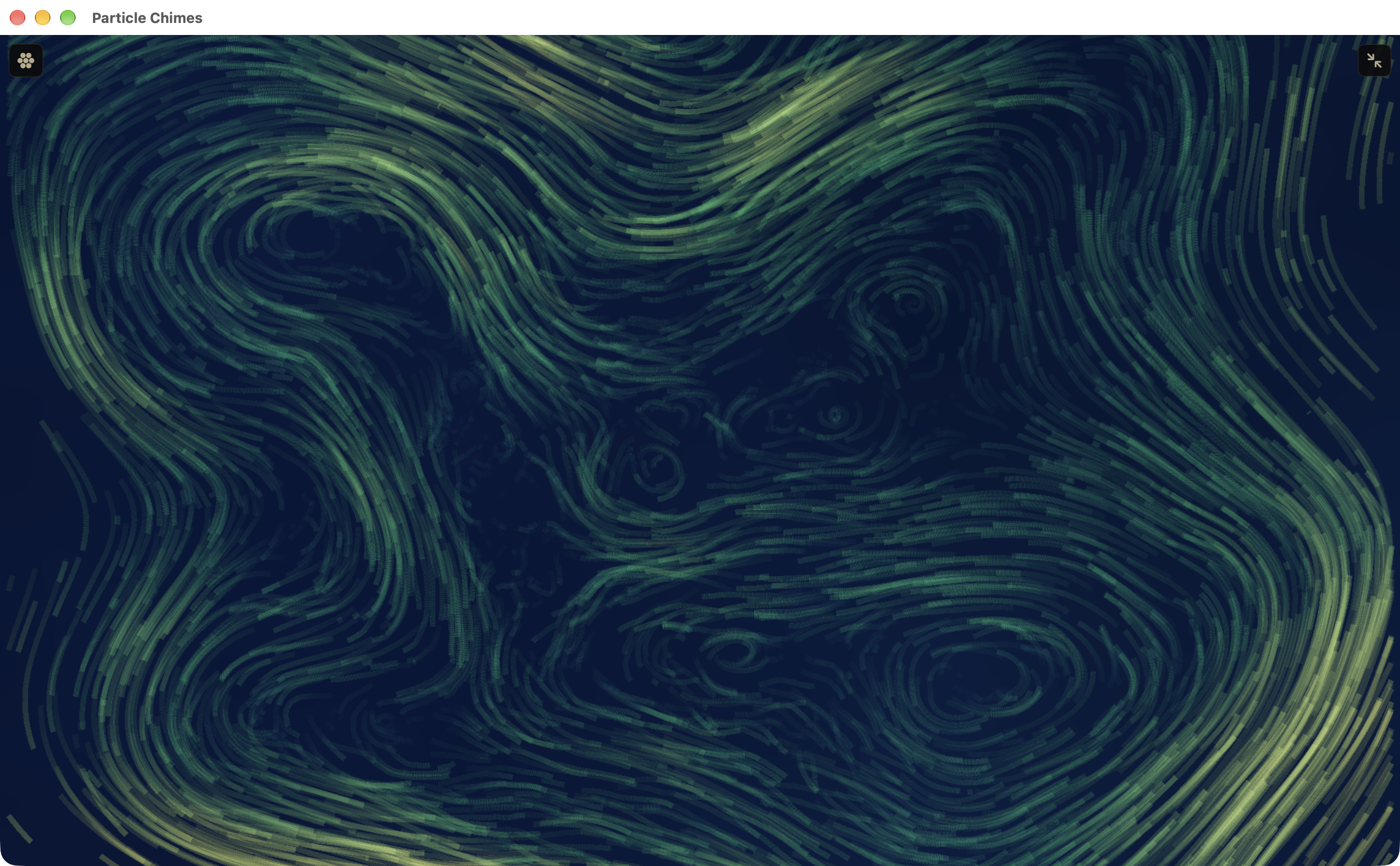
Opens the skin list.
Click a row to switch to that skin. Skins are grouped into the core set and the Flow, Scientific, Fractal, Black & White and Experimental collections.
Stars a skin so it appears in a FAVORITES section at the top.
The tick marks the skin on screen.
Not a picture but a meter bridge: levels at every stage of the instrument, from input and exciter through resonators, cloud, delay, reverb and limiter to the output, with modulation lanes, voices, spectrum and stereo field. Maximize it for the full layout. Hover anywhere for a description.
More skins below, grouped by collection. The Hi-Res Visuals switch at the bottom draws sharper skins on Macs with Apple silicon.
To record a take, choose Record a take in the visualizer list. Recording starts at once and a red chip with the elapsed time appears on the visualizer. Click the chip to stop. Signal Bench cannot be recorded; use screen capture instead.
Stopping opens EXPORT VIDEO. Choose an ORIENTATION (Portrait 9:16, Square 1:1 or Landscape 16:9), a QUALITY (1080p or 4K) and a FORMAT (MOV for highest quality, MP4 for compatibility), then click Export… and pick where to save. The video carries the visuals and the audio together. There is no audio-only export; record audio in your host.
Takes are kept for seven days in ~/Library/Application Support/com.plasticfactory.particlechimes/Recordings, so you can export the last one again. A yellow warning on the chip means some video frames were dropped; a red one means the take failed, with the reason in its tooltip.
14 / MANUAL
Click the gear at the top right. In a plug-in, Settings holds DELAY TIME CHANGE and About & License. The standalone app adds the MIDI section shown here.
Fade crossfades to a new delay time. Tape glides to it and sweeps the pitch. It applies to the delay and to the Loop engine.
In the standalone app, choose the MIDI input device and channel in Preferences (Command-comma).
Click Learn, touch a knob, then move a controller. A banner shows what is being learned; click Done to finish.
Every mapped controller and its target. Clear removes a mapping, Restore brings back a cleared default, and Reset to default map at the end of the list starts over. Learned mappings are saved with the app, not with presets.
Version, licence activation and open-source credits.
MIDI input: Particle Chimes plays note on and note off with velocity, and stops all notes on CC 123. It ignores pitch bend, aftertouch, the sustain pedal and MPE. In a plug-in, control parameters with your host's automation or its own MIDI learn; the CC map below applies to the standalone app.
MIDI output: every format sends the notes Particle Chimes plays itself, from the ribbon, the visualizer and AUTO, so you can record them or drive another instrument. Notes from your host are not echoed. The output is MPE (lower zone, channel 1 as master, channels 2 to 16 for voices, 48-semitone bend range), so microtonal pitches arrive exactly. A non-MPE instrument will hear the notes but may need its bend range set to 48.
| CC | Target |
|---|---|
| 20 to 25 | Texture Mix, Structure (HARMONICS), Brightness, Damping (SUSTAIN), Position, Bloom |
| 26 to 31 | Cloud Size, Density, Texture, Spread, Tone, Feedback |
| 33 to 36 | Reverb Mix, Reverb Size, Delay Mix, Delay Feedback |
| 85 to 88 (switches, 64 and above is on) | Cloud Freeze, Reverb HOLD, Tame MB, Tame SPEC |
| 102 to 106 | Exciter Mix, Exciter Attack, Exciter Decay, Friction, Hardness |
| 107 to 112 | Head 1 to 3 Pitch (stepped), Head 1 to 3 Speed |
| 113 to 117 | Delay Time, Reverb Damping, Stereo width, Chord (stepped), Model (stepped) |
15 / MANUAL
In a host, Particle Chimes follows the host tempo and beat position. Synced delay times, synced heads, synced MOD slots and AUTO all lock to the host grid, so a loop or a rewind plays back the same way each time. In the standalone app the BPM control sets the tempo.
Your host session stores the complete sound, including modulation, the exciter chain and the tuning. The visualizer skin, the ribbon mode and whether the visualizer is maximized are settings of this computer, not part of the session.
Particle Chimes publishes 64 parameters for host automation, covering the resonator, exciter, particles and heads, the delay and reverb, and the AUTO clock and pattern. The exciter type, particle engine, FREEZE, tape mode, tuning, key and modulation slots are saved with the sound but are not automatable.
Some parameters appear in a host as plain numbers: Resonator Model as 0 to 11 (in menu order), Chord as 0 to 10, and Auto Division as 0 to 15. Switches read 0 or 1, and envelope times show the knob position rather than milliseconds. Use the editor to read the actual values.
16 / MANUAL
Particle Chimes FX is the same instrument as an audio effect. Put it on a track with mono or stereo audio and play it with MIDI, or let AUTO play it. There is no standalone FX app.
The FX editor adds an INPUT block to the top bar: a level meter and a gear that opens INPUT ROUTING. Under RESONATOR, INPUT LEVEL sends the track into the exciter; this works only with an Ext exciter selected, and starts at zero for safety. Under PARTICLES IN, RESONATOR LEVEL and DRY LEVEL set how much of the resonator and of the incoming audio are recorded onto the tape. The input reaches the cloud whatever exciter is selected.
The FX version has its own factory presets, grouped as looping delays, granular textures, pitch shifts and stretches, and its user presets also store the input routing and FREEZE.
The instrument version also has an audio input. Choose the Ext or Ext/Voice exciter and whatever your host sends to the instrument's input strikes the resonator: Ext feeds every voice at once, Ext/Voice feeds each voice through its own envelope.
17 / MANUAL
Every knob and fader works the same way. Right-click any knob for a menu with Set to Default, Enter Value… (a percentage of its range), and, where the knob can be modulated, Modulate with, Remove Modulation and Edit Modulation…. Some hosts keep keyboard shortcuts for themselves; the shortcuts below always work in the standalone app.
| Action | Result |
|---|---|
| Drag up or down | Change a knob or fader |
| Shift-drag, or hold still 0.45 s then drag | Fine adjustment |
| Scroll wheel or trackpad | Change the knob under the pointer (Shift for fine) |
| Double-click | Reset to default |
| Right-click | Value, default and modulation menu |
| Click or drag on the visualizer | Strum the VIZ RESONATOR |
| Click or drag on the tape | Move the nearest playhead |
| Command-Shift-F (Ctrl+Shift+F on Windows) | Maximize or restore the visualizer |
| Escape | Close the MOD editor, the exciter chain editor, About & License or the maximized view |
| Command-comma (Ctrl+comma on Windows) | Audio and MIDI preferences (standalone app) |
18 / MANUAL
Particle Chimes for Windows is the same instrument, with the same engine, presets and host parameters. Its editor is drawn differently, so some controls are named or placed differently and a few features are not there yet. The On Windows note at the end of each chapter gives the details; this chapter collects the essentials.
It requires Windows 10 or later on a 64-bit (x64) PC, and comes as a VST3 instrument, a VST3 effect and a standalone app. There is no AAX version. The installer asks for administrator permission. It puts the app in C:\Program Files\Plastic Factory\Particle Chimes and both plug-ins in C:\Program Files\Common Files\VST3, the folder every host scans. Installing over beta 14 or earlier removes the old per-user copies, so your host lists each plug-in once. Close your hosts before you upgrade. Uninstalling keeps your presets, licence and settings.
The window can be resized from 780 by 480 to 2560 by 1600. Below 1100 pixels wide the panels stack in one scrolling column: scroll, swipe or use UP and DOWN, and the ribbon stays at the bottom. BLOOM gets its own card only when the window is at least 900 pixels tall. Touch screens work throughout.
| Item | macOS | Windows |
|---|---|---|
| Formats | AU, VST3 and AAX; standalone app | VST3; standalone app |
| Requires | macOS 14 or later | Windows 10 or later, x64 |
| Settings | Gear at the top right | MORE menu at the top right |
| Demo indicator | DEMO badge | MORE button reads DEMO |
| INIT | BLOOM LEVEL 0 % | BLOOM LEVEL 25 % |
| Resonator settings | CHIMES sheet | SETUP page |
| Standalone tempo | BPM in the PLAYHEADS area | Minus and plus in AUTO PLAY |
| Recording | Video with audio, MOV or MP4 | Audio only, WAV, standalone app only |
| MIDI learn | Standalone app, in Settings | Not yet; the default CC map applies |
| Host transport | AUTO can follow it | AUTO runs from its own button |
| Maximize visualizer | Command-Shift-F | Ctrl+Shift+F |
| Audio and MIDI devices | Command-comma | File > Preferences…, Ctrl+comma |
19 / MANUAL
On the Mac, Particle Chimes requires macOS 14 or later. The installer adds the standalone app and the Audio Unit, VST3 and AAX plug-ins for both Particle Chimes and Particle Chimes FX. Rescan plug-ins in your host if they do not appear.
Without a licence, Particle Chimes runs in demo mode. Every control works, but the sound fades out for one second every minute and presets cannot be saved. Recordings made in demo mode contain the same gaps. A DEMO badge appears at the top of the window; click it, or choose About & License… in Settings, to enter your licence.
On the LICENSE tab, paste your serial into the License serial field and click Activate, or click Load License File… to use a .pflicense file offline. One licence covers three computers and also unlocks the earlier Chimes plug-in. Particle Chimes checks the licence online about once a month. To move a licence to a new computer, email support@plasticfactory.com.
No sound: check that a note is reaching the instrument (play the ribbon), that the resonator LEVEL and MIX are not both pointing away from the sound you expect, and, in demo mode, that you are not in the silent second.
The sound keeps growing or will not stop: lower BLOOM LEVEL, then PARTICLES FEEDBACK and DELAY FEEDBACK. Release FREEZE and reverb HOLD if they are on.
Clicks when changing delay time: switch DELAY TIME CHANGE to Fade in Settings.
Notes from a MIDI controller sound but the knobs do not follow its controllers: the CC map works only in the standalone app. In a plug-in, use your host's MIDI learn.
Keyboard shortcuts do nothing in a plug-in: some hosts keep keys for themselves. Use the buttons on screen.
20 / MANUAL
Particle Chimes is made by Plastic Factory. The editor, the performance ribbon, AUTO, BLOOM and its parallel layer, the delay, the tuning system and every visualizer skin are our own work.
The resonator is a port of Rings, Mutable Instruments' modal resonator, including the six string-synth models from its hidden mode. The exciter section is ported from Elements, Rings' larger sibling. The Particles engine descends from Clouds, and the reverb is Beads. All are by Émilie Gillet (mutable-instruments.net), with the stmlib DSP utilities, under the MIT licence; the source is at github.com/pichenettes/eurorack. Thank you for your amazing contributions to the world of music.
The CLASSIC, BUTLER and SHRUTI voicings on Symp Quantized come from Lyle Mills' alternate Rings firmware, known as Mini-Elements, with chord tables by Jon Butler and Joe McMullen.
Particle Chimes also uses iPlug2 (Zlib), PFFFT (BSD-style, Julien Pommier), TweetNaCl (public domain), MTS-ESP (ISC, ODDSound) and the Roboto typeface (Apache 2.0). The full list is under Settings, About & License, OPEN SOURCE, and the story of where the engine comes from is at docs.plasticfactory.com/particle-chimes/appendix/lineage.