Recording into the buffer
Field granulates a buffer of audio. You can load a file, but you can also record straight into the buffer from the mic or from the audio reaching the plugin, then granulate what you just captured. The record button lives in the top bar, next to Play.
The record button
The record button sits at the right of the top bar, next to Play. It shows a circle when idle and a filled stop square while a recording runs. Every tap starts or stops a recording. There is no long-press, no mode badge and no first-use chooser.
While recording, a red write head sweeps across the waveform at the live capture position and a REC badge shows in the corner.
The REC chip
The REC chip sits just left of the IN meter, on iPad and on iPhone. It shows the current mode. On a wide screen it also shows the length in Loop and Live (for example "Loop 2.0s"). Tap it to open the record options without starting a recording. Changes apply as you make them.
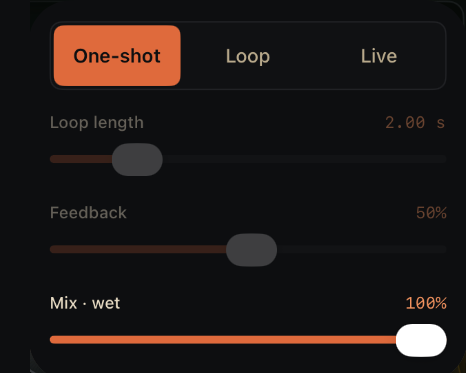
Mode. One-shot, Loop or Live. See The three modes.
Loop length. Reads Window in Live mode. Dimmed in One-shot. See Loop length and window.
Feedback. Loop mode only. See Feedback.
Mix · wet. Blends the grains with the dry input. At 100% you hear only the grains. See Wet / dry mix.
The three modes
The options have a mode picker with three choices.
| Mode | Picker label | What it captures |
|---|---|---|
| One-shot | One-shot | A single clean pass. Each recording replaces the buffer. No feedback. |
| Loop | Loop | A wrapping loop of a fixed length. Audio overdubs into the loop, and feedback sets how much of the previous pass survives. |
| Live | Live | A continuous rolling capture over a fixed window. No feedback, so the buffer always holds the most recent input. |
One-shot is the default. In one-shot the recording auto-stops when it reaches the buffer cap of 120 seconds; you can also stop it by hand.
Loop and Live both wrap at a window you set. The difference is feedback: Loop keeps a share of what was already there so passes build up, Live always replaces so it reflects the latest input like a real-time effect.
The options always show all four controls. The ones that do not apply to the current mode are dimmed, not hidden.
Loop length and window
For Loop and Live, one slider sets the wrapping length. It reads "Loop length" in Loop mode and "Window" in Live mode.
| Control | Range | Default |
|---|---|---|
| Loop length / Window | 0.25 s – 10 s | 2.00 s |
The slider is dimmed in One-shot, which has no wrapping window.
Feedback
Feedback is active only in Loop mode and dimmed in the other two. It sets how much of the existing loop survives each time the record head wraps, so you can layer passes or let them decay.
| Control | Range | Default |
|---|---|---|
| Feedback | 0% – 98% | 50% |
One-shot and Live always record with feedback at zero, so they never overdub.
Wet / dry mix
The mix slider is active in every mode. It blends the dry input through to the output, which matters when Field runs as an insert effect in a host and you want some of the untouched signal to pass.
| Control | Range | Default |
|---|---|---|
| Mix · wet | 0% – 100% | 100% |
At 100% you hear only the granulated buffer. Lower it to pass dry input through alongside the grains.
The input meter
Left of the record button, a small IN meter shows the level of audio arriving at the plugin. It is a check that signal is actually reaching Field, from the mic in the standalone app or from the track in an AUv3 host. The bar turns ember when the input is close to clipping.
Bluetooth output disables recording
Recording needs a live input route. When the output is a Bluetooth device (AirPods or any A2DP / LE headset), Field runs playback-only and recording is turned off. The record button dims, and a tap shows an inline message: "Recording unavailable on Bluetooth audio."
The reason is how iOS handles a record-capable session over Bluetooth. Asking for record and playback together while allowing Bluetooth lets iOS route into the HFP headset profile, which collapses the sample rate to 8–16 kHz and wrecks quality. Field avoids that by dropping to a playback-only session whenever the output is Bluetooth, which keeps full-quality A2DP audio. Recording comes back the moment you switch to a wired or built-in output. If the output becomes Bluetooth while a recording is running, the recording stops.
Live mode is the mode most affected by this, since it depends on a continuous input stream.
Live mode and the grains
In Live mode the buffer keeps being overwritten while grains read from it. Since 1.4.3 the buffer crossfades under the grains as the record head passes. The grains stay where they are, so you do not hear a click or a jump when the head crosses a grain.
After you record
A recorded buffer is granulated exactly like a loaded sample. Every grain control, the XY pads, freeze, pitch, and Area Select all work on it the same way. The sample name updates to reflect what you captured (for example "Recorded", "Live loop", or "Live").
A fresh capture is held only in memory. Field tracks it as unsaved until you either export the audio or save it into a preset. Export lives in the waveform long-press menu ("Export audio…"); saving the buffer into a preset also clears the unsaved state.
Record Performance
Recording writes into the buffer. It does not capture what Field plays. "Export audio…" also saves the raw audio in the buffer, not the granulated result. To capture the performance itself, use Record Performance.
- Tap the preset name to open the preset browser.
- Tap "Record performance".
- Play. A red banner reading "REC PERFORMANCE" with an elapsed time (mm:ss) shows at the top of the screen.
- Tap the banner to stop. The row in the preset browser now reads "Recording… Tap to stop" and stops it too.
When you stop, a share sheet opens with the name, duration and size of the take. The file is already saved. Tap Share… to send it somewhere, or Done to leave it.
Takes are float32 WAV files. They are in the Files app, under On My iPad, in Field's folder, in a folder called Recordings. Names look like "Grainsmith Field 2026-07-17 14.32".
Notes:
- Recording keeps going when you switch apps or lock the screen. A Live Activity shows that it is running.
- If the recording is interrupted (a phone call, Siri) or the audio format changes mid-take, it stops early and keeps what it captured.
- Record Performance is in the standalone app only. It does not appear in the AUv3. In a host, record Field's track in the host.
See also: Area Select to confine grain reads to part of the buffer.