Play and Studio
Particle Chimes has two surfaces sharing one instrument. Everything you play or dial in on one carries straight over to the other; switching surfaces never resets your sound.
Switching surfaces
Tap the half you're not on in the PLAY | STUDIO pill to switch. The pill is two text segments on a dark scrim; look for it over the visual in Play, in the top bar on iPad Studio, and in the visual cluster on iPhone Studio.
Which one opens first
A clean install opens into Play. If the app finds evidence you've used it before (a saved user preset, or a visualizer skin you've picked), it opens into Studio instead. After that it remembers whichever surface you last had open and returns to it on the next launch.
How the sound is built
One signal path runs underneath both surfaces:
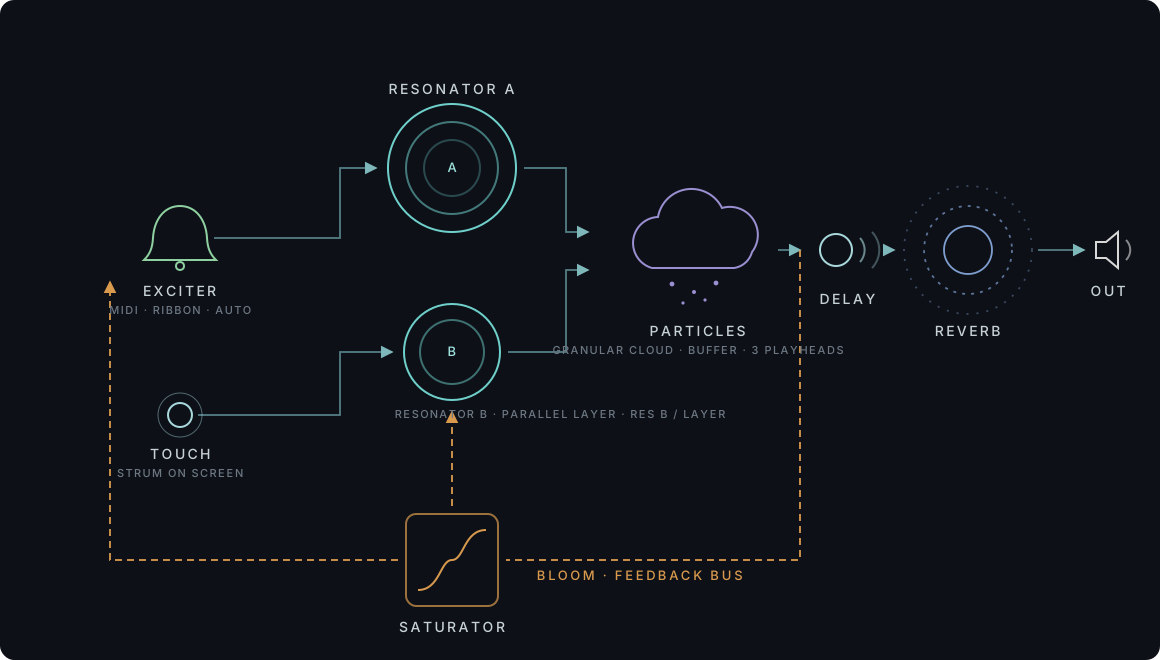
The exciter (MIDI notes, the performance ribbon, or the AUTO player) and your touch on the visual strike two resonators. A is the main voice. B (labelled Layer in the app) is the parallel sustain voice you hear as the wash under the sound. Their ringing feeds the particle cloud, a granular engine that continuously records the resonators into a buffer and reads it back with three playheads. From there the sound passes through the delay and the reverb to the output. The amber loop is Bloom: a feedback bus that taps the sound after the cloud and folds it back into the resonators through a soft saturator, so the instrument can swell and self-sustain.
Every block in this diagram maps to a Studio panel. The same schematic runs in the app as the free Signal Flow visualizer skin, drawn live from the signal: pick it from the skin picker and watch a strike ring the resonators, smear into the cloud, and loop back as bloom.
Play
Play is one layout that adapts to your device and orientation: portrait, landscape, or a maximized full-screen mode. It always shows three things:
- The visual (the "hero"), full-bleed behind everything.
- Two knob cards: the resonator card under the sound-name stepper (Harmonics, Bright, Sustain, Bloom, Layer) and Particles (the grain stream: Mix, Texture, Motion, Pitch, Air). Layer is the level of the second, sustaining resonator voice, the drone-like wash under the sound; it reads "Off" when turned all the way down.
- The performance ribbon along the bottom, in NOTES and TEXTURE modes only. FREE mode is Studio-only.
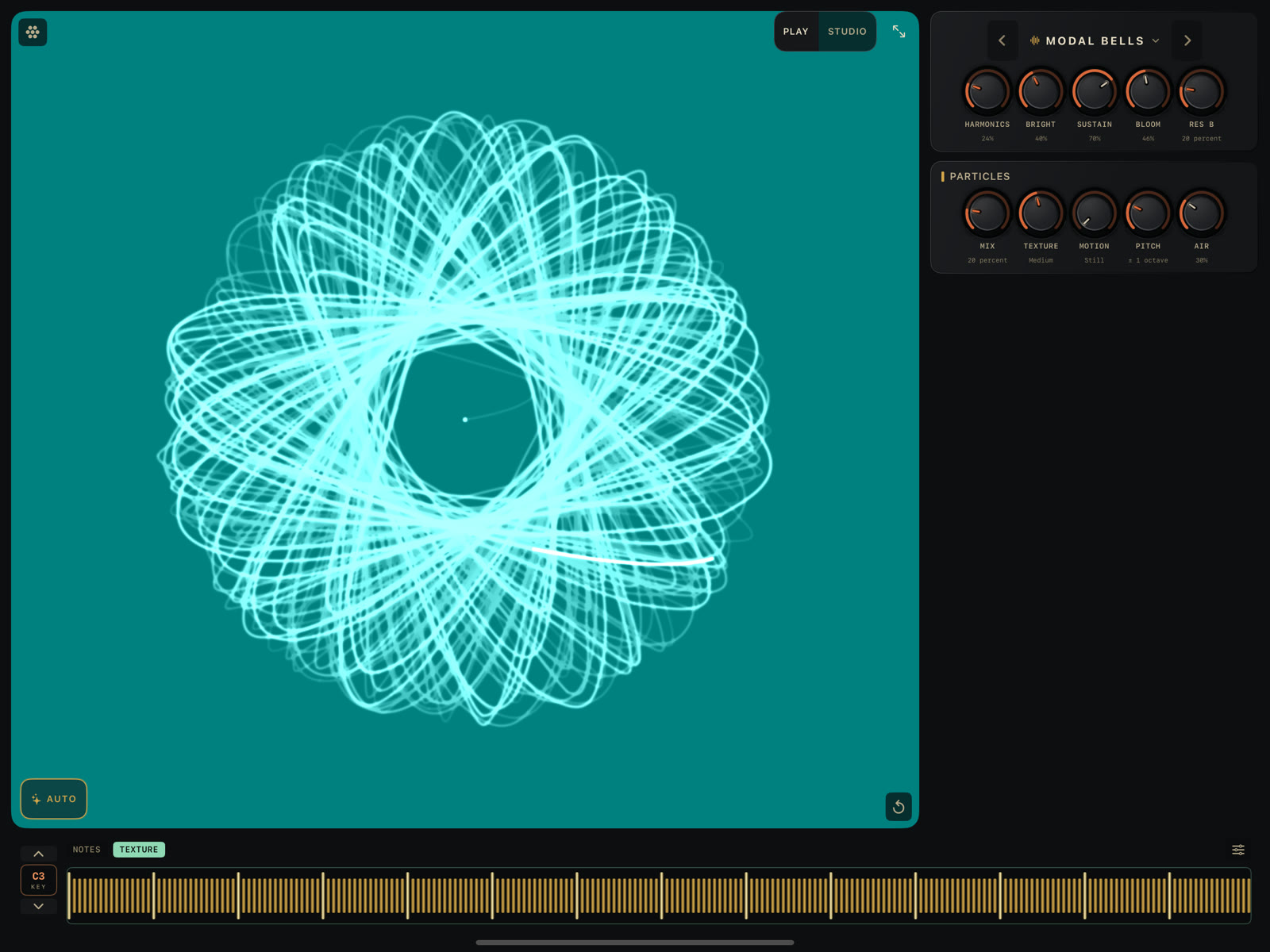
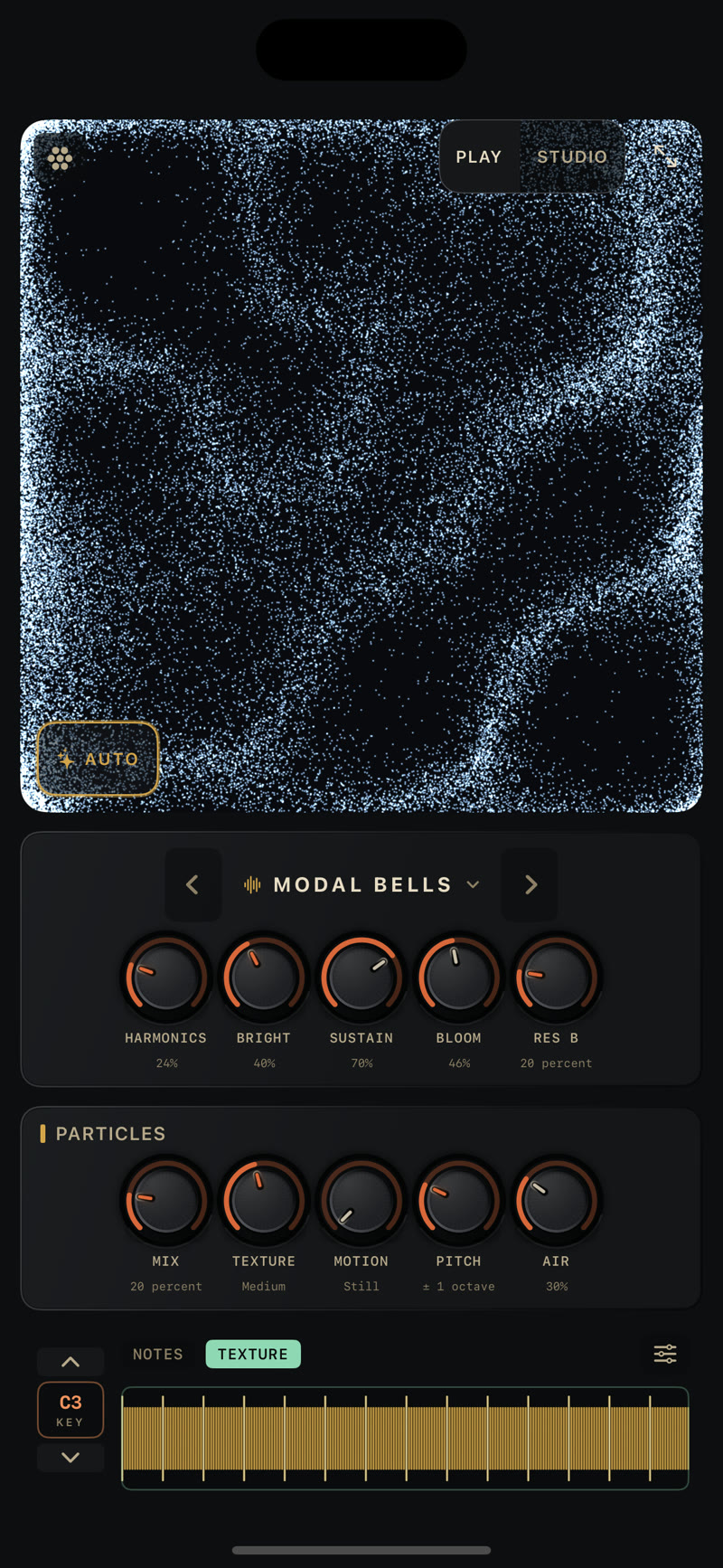
Above the resonator card, the preset picker shows the current sound's name with a chevron on either side; tap the name to open the sound browser. See Presets and favorites for what's in there.
A few controls sit over the visual itself. The AUTO chip starts and stops the self-playing pattern; long-press it for its settings (see The AUTO player). The visualizer-skin picker is the flower button at the top left of the visual, and a maximize button at the top right hides everything but the visual and the ribbon.
Studio
Studio exposes every control on the sound, arranged differently on iPad and iPhone.
iPad
On a window at least 1000×740 points (a full-size iPad in either orientation, including most Slide Over and Split View states, but not a small multitasking sliver), Studio is one page: everything sits on-screen at once, scaled to fill the window, with the performance ribbon pinned at native size along the bottom. Smaller iPad windows fall back to the three-column layout further down this page.
The one-page layout stacks a top bar, a three-column control band, a buffer and playheads row, and the ribbon:
- The top bar carries the wordmark on the left, the sound-name stepper in the center (tap the name to open the sound browser), and the PLAY/STUDIO pill on the right.
- Resonator and Exciter sits in the left column: the resonator model stepper, its four knobs, the exciter's knobs and character stepper, MOTOR, and the polyphony stepper. If the window is tall enough, Bloom's card sits underneath it in the same scrolling column; on a shorter window, Bloom moves into the FX dock below instead (see Reverb/Delay/Bloom below).
- The visual hero fills the center column, with its own AUTO transport (start/stop plus a settings chevron) sitting beside the performance ribbon at the bottom of the page rather than over the visual.
- Particles sits in the right column: the cloud's grain controls, and below them a two- or three-tab FX dock holding Delay and Reverb (and Bloom too, when the window is too short to give Bloom its own card next to the resonator).
- Below the three columns, a row shows the buffer waveform on the left and the three playheads on the right, spanning the same width as the columns above them.
- The maximize toggle collapses the resonator and particles columns down to the visual and the ribbon, the same as the compact layout below.
MOTOR is a chip that cycles OFF → SLOW → MED → FAST → OFF each time you tap it; it turns on a slow rotation in the resonator's tone, modeled on a vibraphone's motor-driven discs. See Settings reference for MOTOR's DEPTH control and what SLOW/MED/FAST actually mean.
iPad — compact windows
Below the one-page layout's size gate, Studio uses three columns under a different top bar. Resonator and Exciter is on the left: the resonator model stepper, its four knobs, the exciter's knobs and character stepper, MOTOR, and the polyphony stepper. The visual hero is in the center. The effects stack is on the right:
- Reverb: Wet, Size, Damp, Shimmer, plus a HOLD chip that freezes the tail.
- Delay, a stereo delay running before the reverb: Mix, Fdbk, Time, and Tone knobs, plus SYNC and PING-PONG chips. SYNC switches the delay time to tempo-synced divisions in place of milliseconds. PING-PONG alternates the repeats left and right. Mix defaults to zero, so the delay is silent until you raise it.
- Bloom, the feedback bus that feeds the sound back into the resonator. It carries a LAYER selector for the second resonator voice (Off, Track, Note, Open; see below) and its output LEVEL.
The LAYER modes govern what the second resonator voice does when you strum the visualization.
- Note is what the factory sounds use, Modal Bells included. It tracks pitch across the screen, quantized to the scale you have selected, left to right. Strum horizontally and it plays like a harp.
- Track follows the performance ribbon: it sounds whatever note you last played there, so it stays tonal with what you are playing.
- Open holds the root. Strumming the visualization always plays the root of your selected scale, for example C2.
- Off silences the second voice.
Three rows sit below the columns. Buffer: a SYNC chip, a length slider, and the sample-buffer waveform with a FREEZE chip. Particles: the cloud's Mix slider and its six grain knobs. Playheads: three heads, each with Position (Pos), Speed (Spd), Pitch (Pit), and Pan, plus a BPM stepper. The performance ribbon spans the full width underneath.
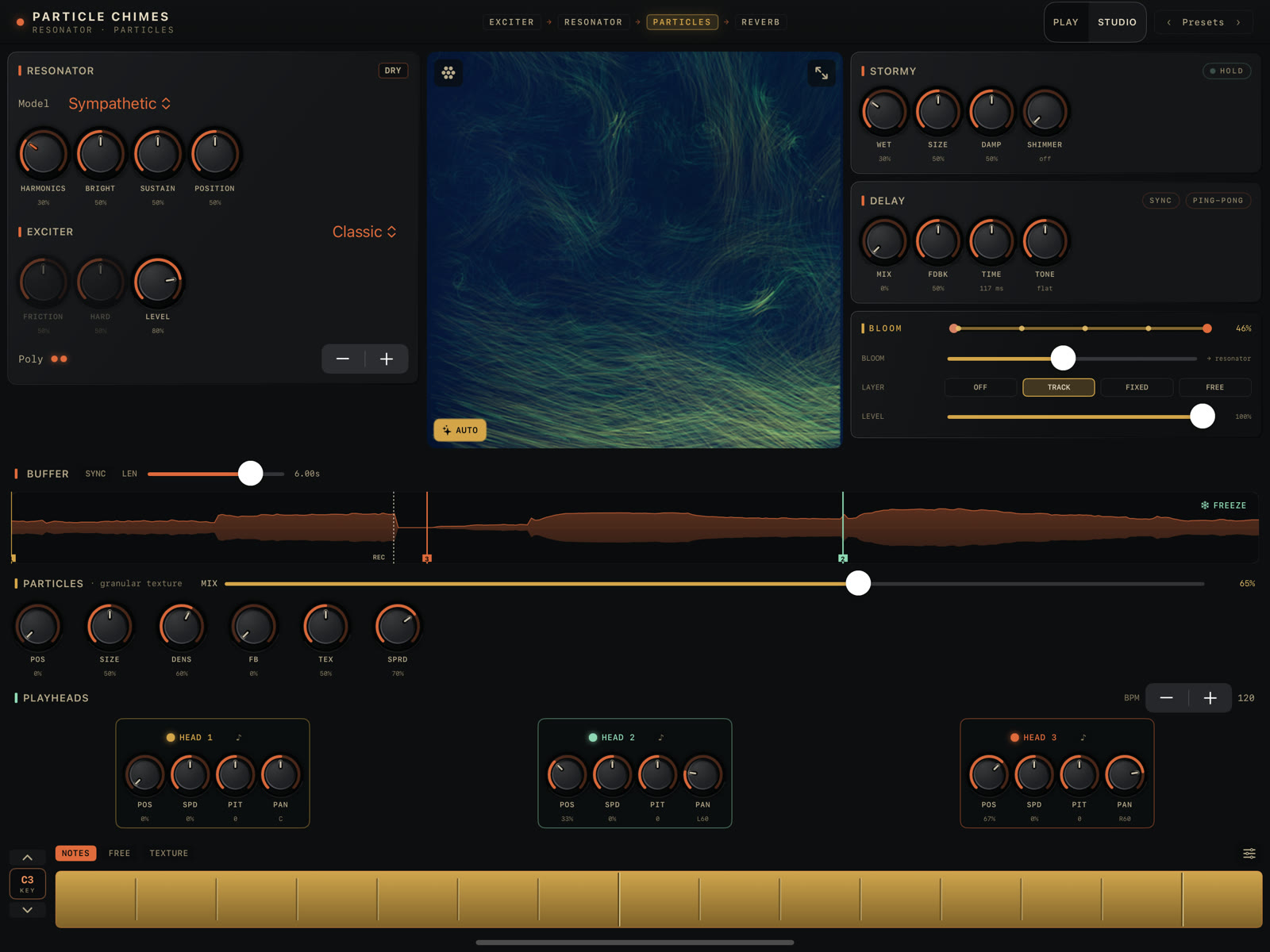
The top bar carries the wordmark on the left, and the PLAY/STUDIO pill plus a Presets strip on the right. Across the center runs a display-only signal-path breadcrumb: Exciter → Resonator → Particles → Reverb, with Particles lit up gold. Tap ‹ Presets › to open the same sound browser Play uses.

Tap maximize to collapse the three-column layout down to the visual and the ribbon. Tap it again to bring the columns back.
iPhone
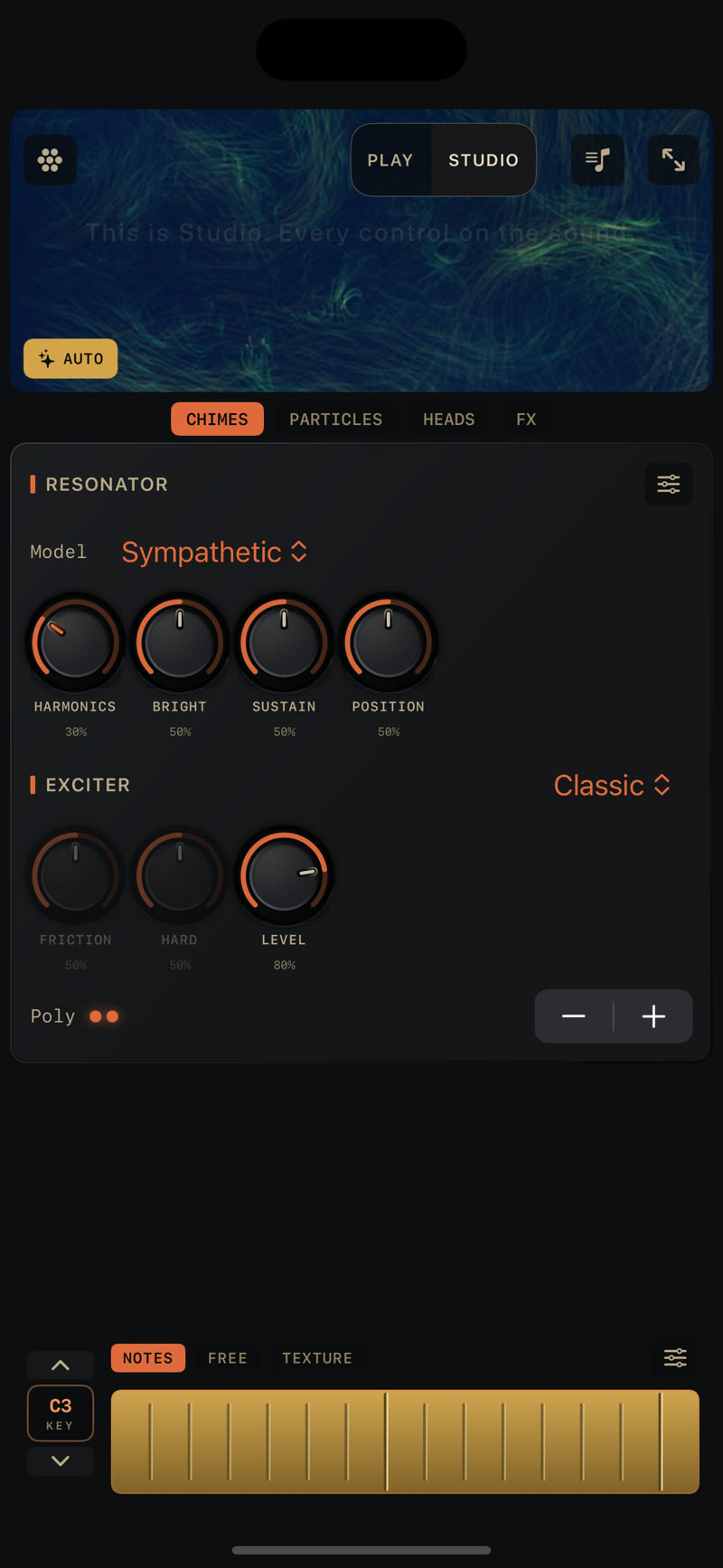
Studio swaps the three columns for swipeable pages: CHIMES, PARTICLES, HEADS, FX. CHIMES holds the resonator and exciter (including MOTOR), PARTICLES the buffer and cloud, HEADS the three playheads, FX the reverb, delay, and bloom panels. Above them sits a persistent visual with its own Freeze and AUTO chips and its own Presets button; there's no top bar on iPhone. The performance ribbon stays pinned at the bottom underneath the paged content, so you can reach it from any page. The maximize toggle works the same way as iPad's.
Inside a host
Hosts like AUM sometimes hand Particle Chimes a window that counts as "regular" width but is too short for the three-column iPad layout. The app checks the window size itself, not just the size class, and falls back to the iPhone-style paged layout when the window is too short or too narrow. A cramped AUM window still gets a usable, more compact Studio.
Where to go next
- The performance ribbon: every mode, FIXED, and ridge density.
- The AUTO player: the self-playing generator and its tempo sync.
- Presets and favorites: the sound browser in full.
- Particle modes: GRAINS, LOOP, and STRETCH, the three ways PARTICLES can play back the tape.
- Visualizers: picking and reading the hero visual.