The performance ribbon
The gold ridged strip across the bottom of the screen is the performance ribbon. It's the instrument's main touch surface, and it's there in both Play and Studio. It has three playing modes. A FIXED toggle turns it into a theremin, the KEY chip sets root and scale, and a ridge-density setting changes how finely it's divided.
The three modes
Mode chips sit at the top-left of the ribbon's header. Play offers NOTES and TEXTURE; Studio adds FREE.
NOTES
Play in the scale. Drag across the ribbon and it snaps to the scale: you feel it click from degree to degree as you cross each ridge boundary. Moving to a new degree re-triggers the note, and how fast you drag sets the velocity. NOTES is the default mode and the one most sounds are designed around.

FREE
Studio only. Use it to glide. The same drag, but continuous: no snapping, no re-triggering, just a glide (portamento) from wherever you land to wherever you drag next. The ribbon looks different here. It's drawn as one unbroken brushed-gold plate with no separate note plates, and only faint lines marking each octave for orientation. FREE is fretless.
TEXTURE
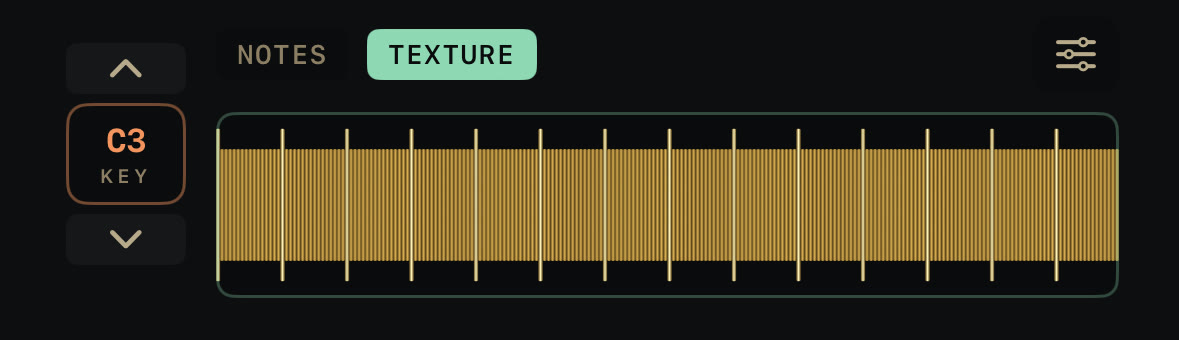
A guiro. Every ridge your finger crosses fires one grain at that ridge's pitch, and how fast you drag sets both the rate of grains and their velocity. Hold still and it's silent; TEXTURE only speaks while you're moving. You'll feel a light tick for each ridge crossed, and a heavier thunk when a crossing carries you into a new note, not just a new ridge inside the same note.
FIXED: the theremin column
Toggle FIX in the ribbon's settings sheet and the left-hand octave column becomes a vertical theremin. Your vertical position on the column sets one pitch, and that pitch plays across the ribbon's full width no matter where you touch it horizontally. Each mode still behaves like itself at that one fixed pitch: NOTES and FREE hold it as a drone, TEXTURE scrapes it as a single-pitch guiro.
The KEY chip and octave
To change root or scale, tap the KEY chip in the ribbon's left column. The chip shows your current octave (for example "C3") under the label KEY, and the chevrons above and below it step the whole ribbon up or down an octave (clamped to a four-and-a-bit-octave range overall).
Tapping the chip opens a popover with:
- A Root picker: the twelve pitch classes, segmented.
- A Family picker: Pentatonic, Major & Modes, Minor, and Blues & Symmetric.
- A grid of scale chips for whichever family is selected. There are 23 scales in total across the four families, from major/minor and the modes through blues, whole-tone, and a handful of non-Western five- and seven-note scales (Hirajoshi, In-sen, Iwato, Egyptian, Hungarian Minor, Phrygian Dominant among them).
If a microtonal tuning with a note count other than 12 is active, the scale chips gray out. The tuning's own note ladder takes over, and a caption tells you which tuning is driving it. The root picker stays live either way.
Ridge density
RIDGE DENSITY in the settings sheet sets how many ridges sit inside each note. It has three chips: COARSE gives 4 ridges, MED gives 8, and FINE gives 16 (the default). A finer density gives TEXTURE mode more grains per note and a more granular feel under your finger. Coarse gives you fewer, chunkier steps.
The settings sheet
Tap the gear icon in the ribbon's header to open SETTINGS. Everything about the ribbon and the instrument's playing state is on that one sheet, in this order: Root & Scale, AUTO, Tuning, Movement, Fixed Pitch, and Ridge Density. The settings reference has the full control-by-control list.